Display rules
MyLogin's display rules allow you to precisely control which applications and shortcuts appear on teacher and student dashboards. You can assign apps broadly to all students or teachers, or get more specific by selecting individual groups, classes, or year levels. Any user belonging to at least one enabled group will see the app on their MyLogin dashboard.
App Display Rules - Watch Video
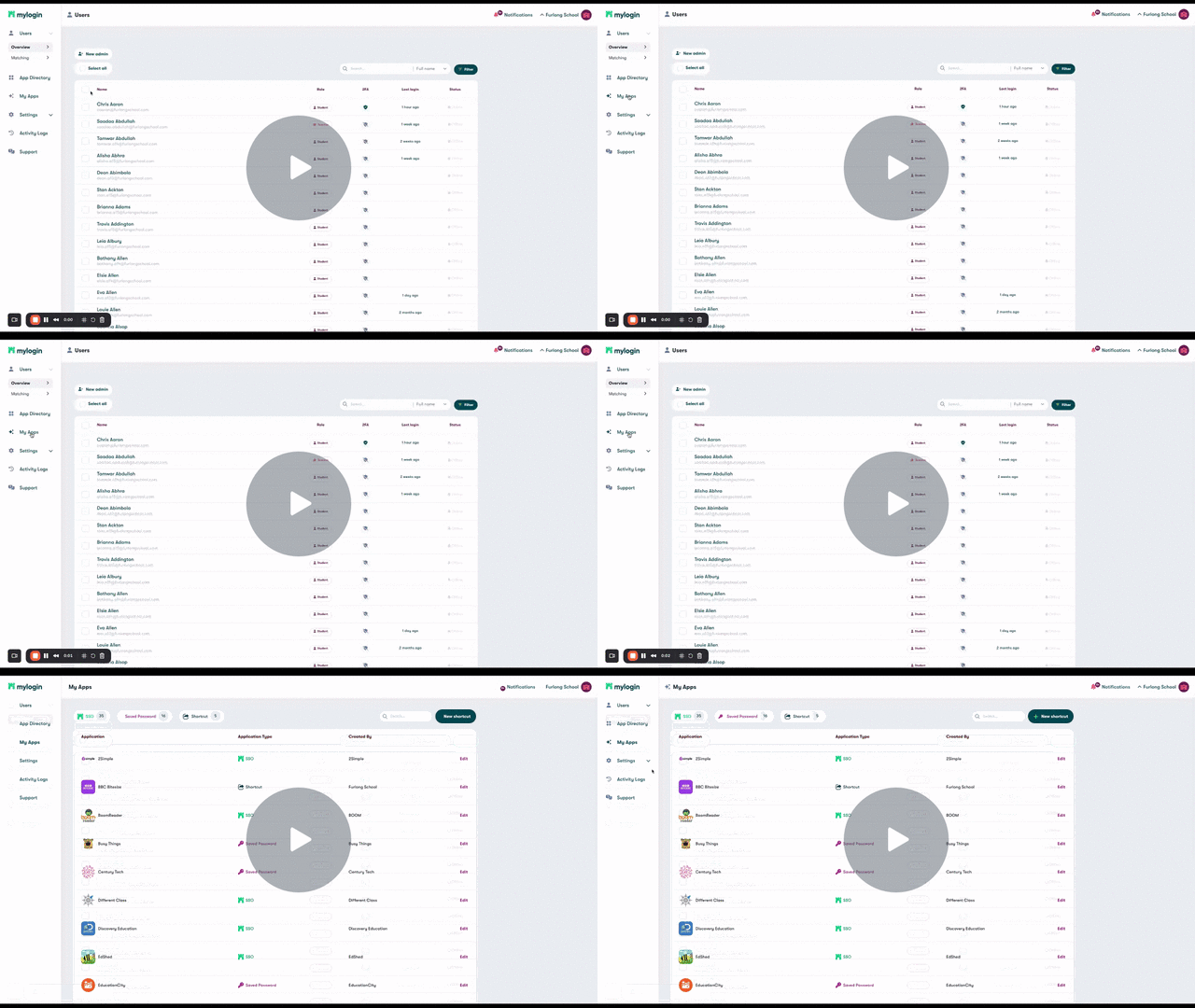
To use the display rules:
- To set custom display rules for an app, go to ‘My Apps’ and find the app you want, then click 'edit'.
- Toggle on 'Display to Selection'.
- You can then grant access to different groups. You can do this on just user type students/employees.
- Alternatively you can be more granular and grant access based on class, house, registration or year.
- Toggle on any groups you want to have the app on their dashboard. Anyone who belongs to a group with the toggle enabled will see the app on their dashboard.
- Please note, these settings can be updated at any time.
Comments
0 commentsPlease sign in to leave a comment.