What is two-factor authentication (2FA)?
Two-factor authentication (2FA) adds an extra layer of security by requiring two different forms of identity verification before granting access to a system or service. While 2FA is vital for security compliance (such as Cyber Essentials accreditation), traditional mobile-app 2FA is difficult to implement in classrooms where users don't have phones. MyLogin solves this by allowing flexible combinations of passwords, badges, and emojis.
Supported 2FA combinations
- Magic Badge + Password (Recommended): Uses something they know (password) and something they have (badge). Ideal for staff and older students.
- Magic Badge + Emoji Password: Great for younger students, offering an early lesson in account security without needing a text password.
- Emoji Password + Password: A great alternative for environments where physical badges aren't being distributed
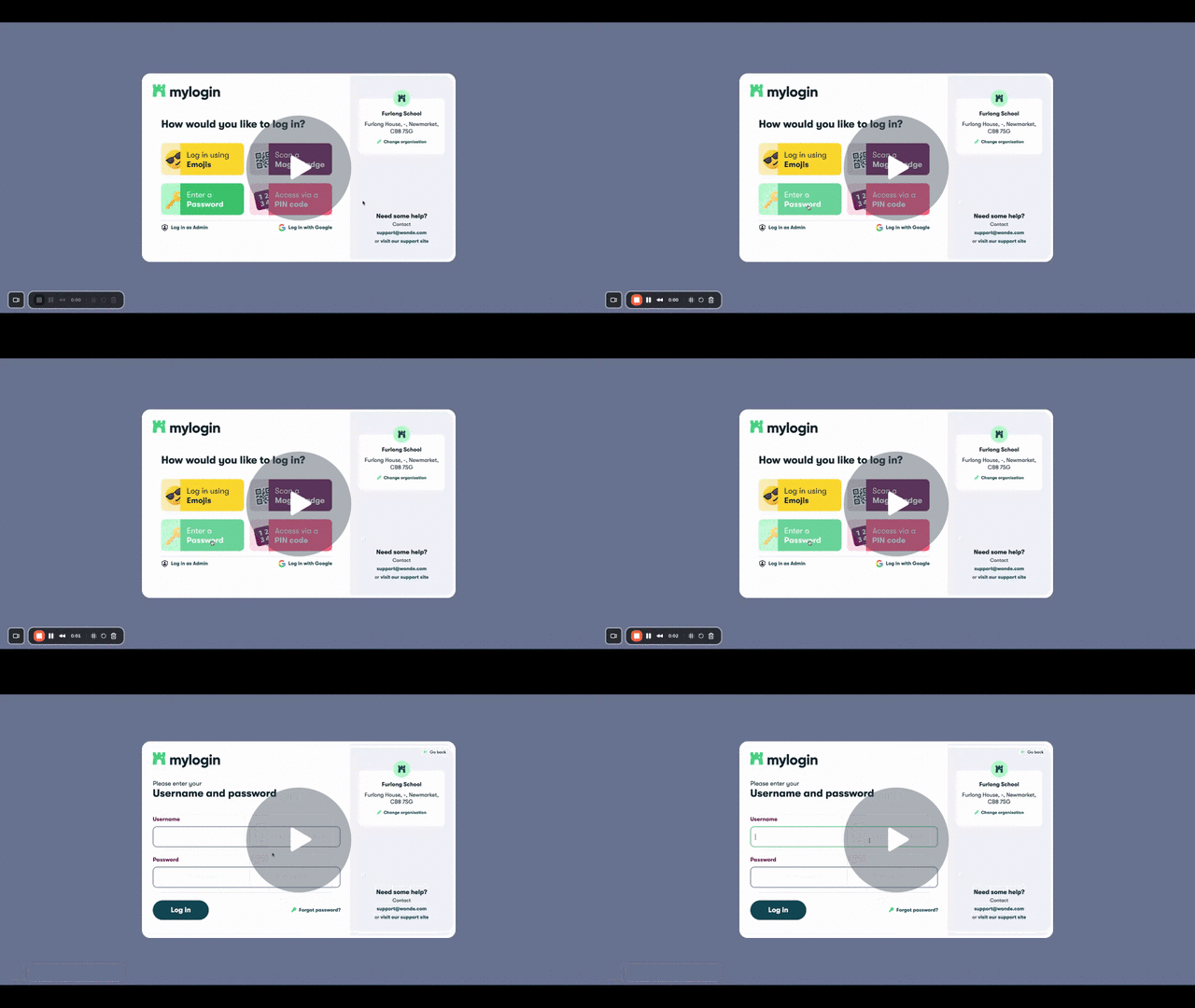
2FA Demo using Magic badge and password - Watch Video
Setting up 2FA for individual users
- Navigate to Users > Overview in your admin dashboard.
- Select the user: Search for the specific user.
-
Click on their name to open the user modal.
-
Choose method and enable: Select your preferred 2FA method combination then click Enable 2fa to confirm.
-
(To turn it off later, simply return here and click to Disable 2FA).
Setting up 2FA in bulk (groups, classes, or years)
-
Filter your audience: Optional. Go to Users > Overview. Click the Filter button to narrow down your list by classes, groups, or year groups.
-
Select users: Tick the boxes next to specific users, or select the top check box to highlight the entire filtered list.
- Apply bulk action: Click the Bulk actions button and select Two-factor from the menu. Choose your preferred method combination, then click Update 2FA to confirm. Any selected users that already had 2FA applied will have their 2FA updated to the new selected method, if it is different.
Frequently asked questions
What if a user forgets their password or loses their badge?
In the classroom teachers can generate a 5 digit PIN for a student user to grant them temporary access to their account. These PINs expire after 8 hours and should allow the user access for the day and time to reset their password, recover their badge or have a new one generated by an admin.
Alternatively an admin can help reset their password or generate a new badge.
Can I exclude specific users from 2FA or apply it to certain groups?
Yes, 2FA can be applied by an admin on a per user basis, across your organisation or on a group by group basis. Individual users from groups can be excluded.
Does 2FA apply to admins?
As admins are likely to be operating in an office environment, rather than the classroom, we offer 2FA for admins with the second factor being supplied by an authenticator app on a mobile device. This can be turned on or off for all admins, we recommend turning it on for admins due to their increased level of access.
Does 2FA apply to both MyLogin and MyLogin Lite?
Yes. 2FA functions exactly the same way across both product tiers.
Can users make use of Emoji Passwords for 2FA?
Yes, absolutely. Emoji passwords are fully integrated into our 2FA offering. You can pair them with either a standard text password or a physical Magic Badge. This is a fantastic way to introduce younger children to security concepts and build good cybersecurity habits early, without the friction of remembering complex text passwords
Comments
0 commentsPlease sign in to leave a comment.